
Reading
The notebook opens in a reading pane, so a long file does not take over the page. Results hides the code. Code hides the outputs. The numbers are the ones saved in the file.
Updated .
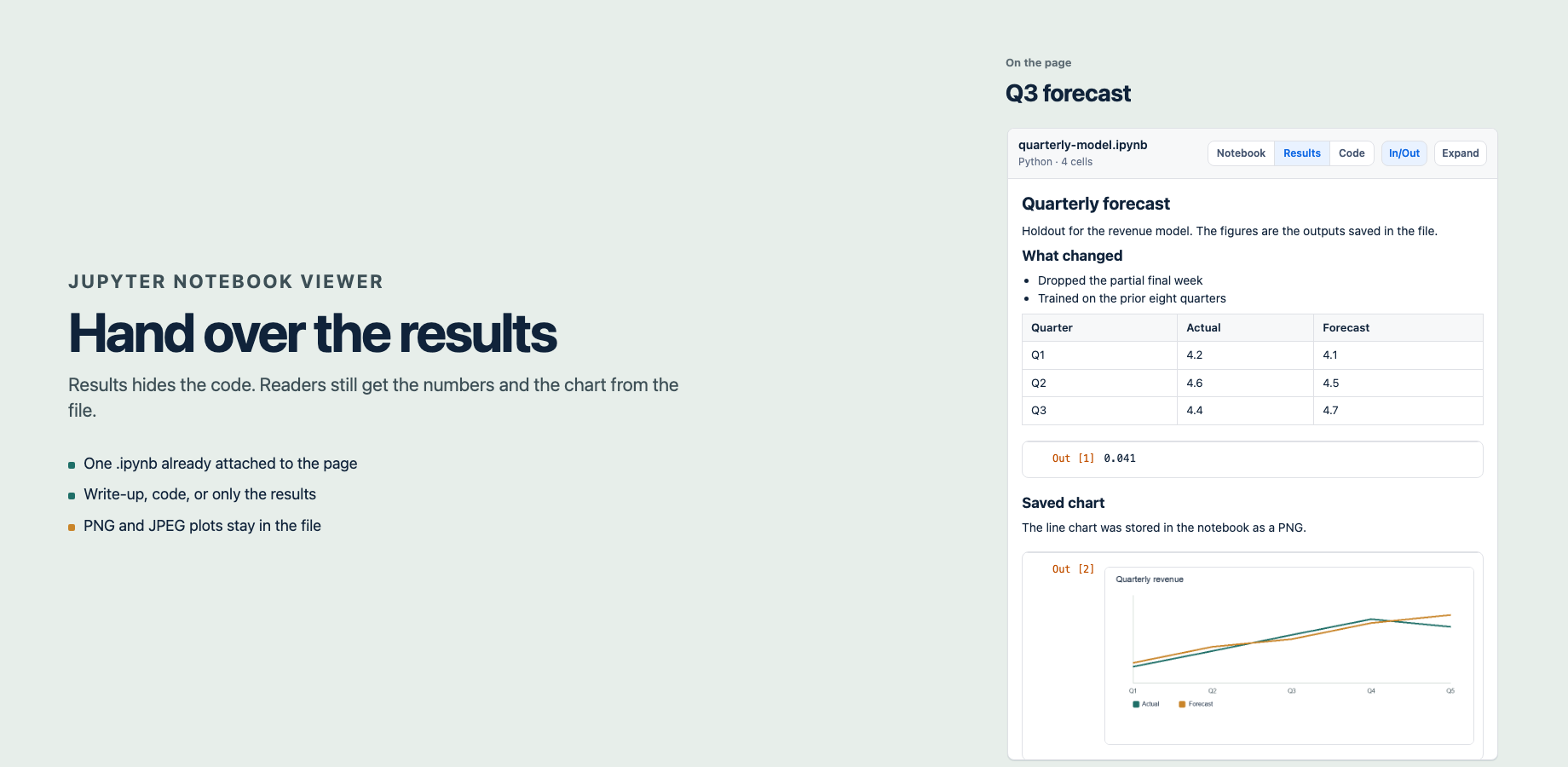
Controls
| Control | What it does |
|---|---|
| Notebook | Shows the write-up and the code, with outputs under the code. |
| Results | Hides code and shows outputs. |
| Code | Hides outputs and shows the cells. |
| In/Out | Shows or hides execution numbers. |
| Expand | Lets the notebook flow with the page. Choose it again to fit the pane. |
| Contents | Jumps to a Markdown heading inside the pane. |
| Copy | Copies that code cell. |
Notebook, Results, Code, In/Out, and Expand are remembered in the browser. Another reader starts from the full notebook.
Output
- Markdown headings, paragraphs, lists, tables, quotes, and fenced code.
- Bold, emphasis, inline code, and links that start with
http://orhttps://. - Code cells, including the language saved with the notebook.
- Stream text and plain text outputs. A single text output is cut at 20,000 characters.
- Plots stored in the file as PNG or JPEG.
The first 200 cells are shown. If the file has more, the pane says the rest were omitted.
Limits
The page does not execute the notebook. To refresh a figure, run the notebook in Jupyter, save, and attach the new file. HTML and widgets are covered on the limits page.